In the earlier article, Getting Started with ClickHouse®: OSS – Installation and Setup, we covered the process of installing ClickHouse® and verifying that the server is up and running.
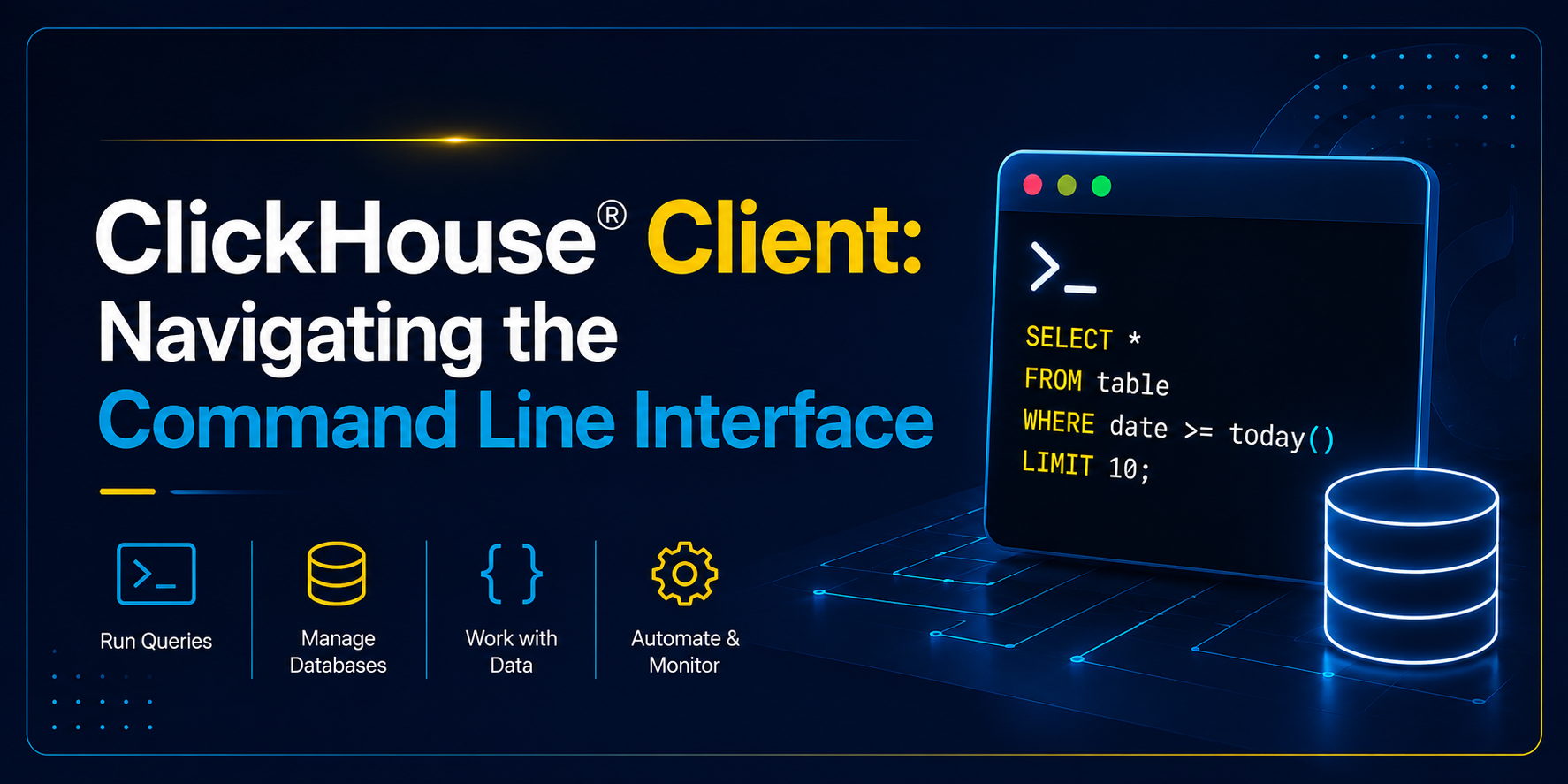
With ClickHouse® successfully installed, the next step is learning how to interact with your database. This command-line tool allows users to communicate directly with a ClickHouse server.
In this guide, we’ll explore the ClickHouse Client, learn how to connect to a ClickHouse server, execute queries, inspect database objects, manage data, and use practical command-line features that simplify day-to-day operations.
What is ClickHouse® Client?
ClickHouse Client is a command-line interface (CLI) that enables users to communicate directly with a ClickHouse server.
Using the client, you can:
- Execute SQL queries
- Create and manage databases
- Create and modify tables
- Insert and retrieve data
- Monitor server activity
- Import and export datasets
- Perform administrative and troubleshooting tasks
Because it provides direct access to ClickHouse functionality, the client is often the preferred tool for development, debugging, and operational workflows.
Prerequisites
Before using the ClickHouse Client, ensure:
- ClickHouse Server is installed and running
- You have terminal access to the server
- The default client package is installed
- Required network ports are accessible for remote connections
Why Use ClickHouse® Client?
Furthermore, the ClickHouse® Client offers several advantages:
- Lightweight and fast
- Direct access to server functionality
- Ideal for automation and scripting
- Useful for troubleshooting and diagnostics
- Supports multiple output formats
Connecting to ClickHouse®
To launch the ClickHouse Client, open a terminal and run:
$ clickhouse-clientIf the connection is successful, you’ll see output similar to:
ClickHouse client version 25.x.x.
Connecting to localhost:9000 as user default.
Connected to ClickHouse server version 25.x.x.

:)
The :) prompt indicates that the client is ready to accept SQL commands.
Note: If ClickHouse® is running inside a Docker container, you can access the ClickHouse Client using:
docker exec -it clickhouse-server clickhouse-clientReplace clickhouse-server with your container name if it is different.
Executing Your First Command
A simple way to verify connectivity is by checking the server version:
SELECT version();Example output:
┌─version()─┐
│ 25.x.x    │
└───────────┘
You can also check the current date and time:
SELECT now();Exploring Available Databases
To list all databases available on the server:
SHOW DATABASES;Example output:
default
system
information_schema
Among these, the system database is especially important because it contains metadata and operational information about the ClickHouse server.
Creating and Using a Database
First, create a new database:
CREATE DATABASE analytics;Next, switch to the database:
USE analytics;Finally, verify the active database:
SELECT currentDatabase();Output:
analyticsCreating a Table
Let’s create a simple table for storing user events:
CREATE TABLE user_events
(
    user_id UInt64,
    event_type String,
    event_time DateTime
)
ENGINE = MergeTree()
ORDER BY (user_id, event_time);
After creating the table, you can view all available tables:
SHOW TABLES;Understanding Table Structure
To inspect the schema of a table:
DESCRIBE TABLE user_events;Example output:
user_id      UInt64
event_type   String
event_time   DateTime
Alternatively, to view the complete table definition:
SHOW CREATE TABLE user_events;This command displays engine settings, sorting keys, and additional configuration details.
Inserting Data
Insert sample records:
INSERT INTO user_events VALUES
(101, 'login', now()),
(102, 'purchase', now()),
(103, 'logout', now());
As a result, the data becomes available for querying immediately.
Querying Data
To begin, retrieve all records:
SELECT * FROM user_events;Next, filter records based on specific conditions:
SELECT * FROM user_events
WHERE event_type = 'login';
Limit results:
SELECT * FROM user_events LIMIT 5;Performing Aggregations
Analytical queries are where ClickHouse® truly shines.
Count events by type:
SELECT
    event_type,
    count() AS total_events
FROM user_events
GROUP BY event_type
ORDER BY total_events DESC;
ClickHouse® is designed to execute aggregations efficiently, even when datasets scale to billions of rows.
Formatting Query Results
ClickHouse® supports multiple output formats. For example, you can display query results in Vertical, JSON, or CSV format depending on your requirements.
Vertical Format
Useful when rows contain many columns:
SELECT * FROM user_events
LIMIT 1 FORMAT Vertical;
Example output:
Row 1:
──────
user_id: 101
event_type: login
event_time: 2026-06-13 10:30:00
JSON Format
SELECT * FROM user_events
FORMAT JSON;
CSV Format
SELECT * FROM user_events
FORMAT CSV;
These formats are commonly used when integrating ClickHouse with scripts and external applications.
Running Multi-Line Queries
Complex analytical queries are often easier to read across multiple lines:
SELECT
    event_type,
    count() AS total_events,
    uniq(user_id) AS unique_users
FROM user_events
GROUP BY event_type
ORDER BY total_events DESC;
Once the terminating semicolon (;) is entered, the query executes automatically.
Working with Query History
The ClickHouse® Client supports command history and keyboard shortcuts.
| Shortcut | Action |
|---|---|
| ↑ | Previous query |
| ↓ | Next query |
| Ctrl + A | Move to beginning of line |
| Ctrl + E | Move to end of line |
| Ctrl + R | Search command history |
| Ctrl + C | Cancel current query |
Furthermore, these shortcuts can significantly improve productivity when working interactively.
Useful Client Commands
In addition to SQL statements, the ClickHouse Client provides several convenience commands for navigating and managing sessions.
| Command | Description |
|---|---|
\d | List tables in the current database |
\l | List available databases |
\c <database> | Switch to a database |
| . | Repeat the last query |
exit | Exit the ClickHouse Client |
Example:
\c analytics
\d from analytics
Exploring the System Database
In addition, the system database provides valuable insights into server operations and server health.
View available tables:
SHOW TABLES FROM system;View currently running queries:
SELECT * FROM system.processes;View table metadata:
SELECT * FROM system.tables;These system tables are commonly used for monitoring and troubleshooting ClickHouse environments.
Running Queries Without Interactive Mode
The ClickHouse Client can execute queries directly from the terminal without entering an interactive session.
Execute a Single Query
clickhouse-client --query="SELECT now();"Output:
2026-06-13 10:45:00This approach is particularly useful in:
- Automation scripts
- Scheduled jobs
- Monitoring tools
- CI/CD pipelines
Executing Queries from SQL Files
For reusable queries, store SQL statements in a file and execute them directly.
Create a file named report.sql:
-- report.sql
SELECT
    event_type,
    count()
FROM user_events
GROUP BY event_type;
Execute the file:
clickhouse-client < report.sqlAlternatively:
clickhouse-client --queries-file report.sqlThis approach is useful for recurring reports, administrative tasks, and automation workflows.
Exporting Query Results
For example, you can export data to CSV:
clickhouse-client \
--query="SELECT * FROM user_events FORMAT CSV" \
> events.csv
Importing Data
Similarly, CSV data can be imported into ClickHouse:
clickhouse-client \
--query="INSERT INTO user_events FORMAT CSV" \
< events.csv
This method provides an efficient way to load large datasets into ClickHouse.
Connecting to Remote Servers
To connect to a remote ClickHouse instance:
clickhouse-client \
  --host server.example.com \
  --port 9000 \
  --user default \
  --password
Common connection parameters include:
| Parameter | Description |
| –host | Server hostname |
| –port | ClickHouse port |
| –user | Username |
| –password | User password |
| –database | Default database |
| –query | Execute a query directly |
Security Tip
Additionally, avoid passing passwords directly in scripts or shell history. Use secure credential management methods or environment variables when automating ClickHouse Client connections.
Troubleshooting Common Issues
Connection Refused
Connection refusedPossible causes:
- ClickHouse server is not running
- Incorrect host or port
- Firewall restrictions
Authentication Failed
Authentication failedIn this case, verify:
- Username
- Password
- User permissions
Long Running Queries
To inspect active queries:
SELECT * FROM system.processes;This helps identify resource-intensive workloads and troubleshoot performance issues.
Best Practices
When working with the ClickHouse Client:
- Use SQL files for complex or reusable queries
- Take advantage of command history
- Explore system tables for monitoring
- Export data using appropriate formats
- Verify schemas before loading data
- Use direct query execution for automation tasks
Overall, following these practices can improve both productivity and operational efficiency when working with ClickHouse Client.
Exploring ClickHouse® for Your Analytics?
At Quantrail Data, we help teams run ClickHouse® reliably for real-time analytics – from Kubernetes deployments and migrations to performance tuning in production.
We see these challenges firsthand while supporting demanding analytics workloads. In one recent engagement, a customer achieved near bare-metal performance with ClickHouse® in production – a story we’ve shared here:
Success Story: Quantrail Bare-Metal ClickHouse® Deployment
If you’re evaluating ClickHouse® or trying to get more out of an existing setup, we’re happy to share practical lessons from real-world deployments.
Contact
Quantrail Data
Conclusion
The ClickHouse® Client is a powerful command-line interface that enables users to interact directly with ClickHouse databases. From connecting to servers and executing queries to exploring database objects and automating routine tasks, it provides a fast and efficient way to manage ClickHouse environments.
By understanding the core features of the ClickHouse Client, you can streamline everyday database operations, improve productivity, and make the most of ClickHouse’s high-performance analytical capabilities. Whether you’re a developer, data engineer, or database administrator, mastering the ClickHouse Client is an important step in your ClickHouse journey.
References
- ClickHouse® Documentation – ClickHouse Client
https://clickhouse.com/docs/interfaces/cli - ClickHouse® SQL Reference
https://clickhouse.com/docs/sql-reference - Getting Started with ClickHouse®: OSS – Installation and Setup
https://quantrail-data.com/clickhouse-installation-and-setup-guide/ - How to Export Data from ClickHouse®
https://quantrail-data.com/how-to-export-data-from-clickhouse/